
[ Features ]
MCP Tools
Select a tool from the sidebar, fill in its arguments, and execute it. MCP Studio handles two kinds of tools: ones that return plain data and ones that return an interactive widget.
How to call a tool
- 1
Pick a tool
Click any tool name in the left sidebar under the active profile. The execution panel loads its argument schema.
- 2
Fill in the arguments
Enter values for each argument in the Tool Arguments tab. Arguments are validated against the tool's schema before the call is sent.
- 3
Execute
Click Execute. The response appears in the Logs panel. If the tool returns a widget, it renders automatically in the Widget Preview panel.
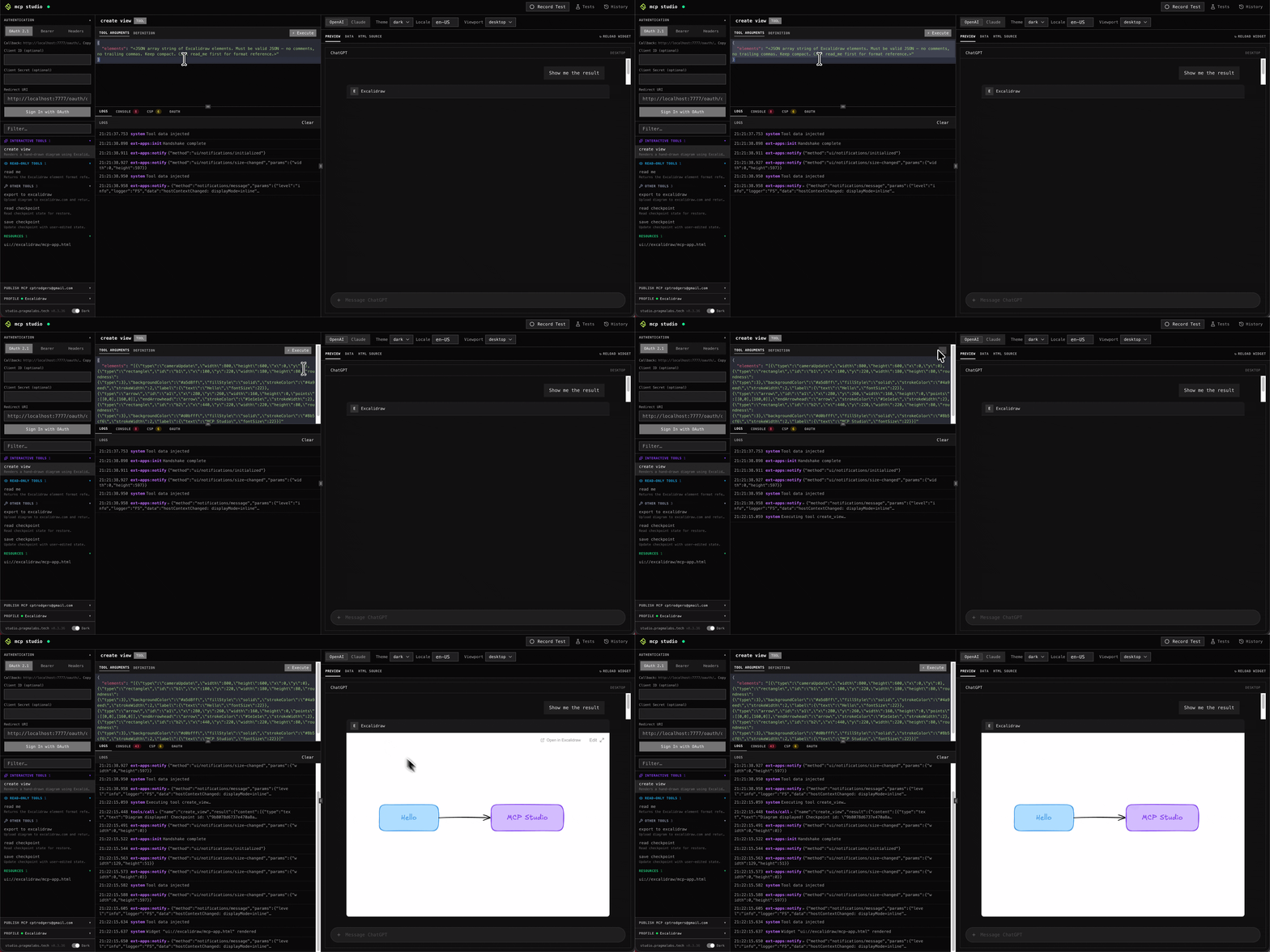
Non-interactive tool
Some tools return plain data — text, JSON, or markdown. The response is displayed in the Widget Preview panel as a read-only view. There is nothing to click or interact with; the panel just shows you what the server returned.
Example — read_me (Excalidraw)
Calling read_me returns a text
description of the current Excalidraw canvas. MCP Studio renders it in the
preview panel as static content — no interaction needed.
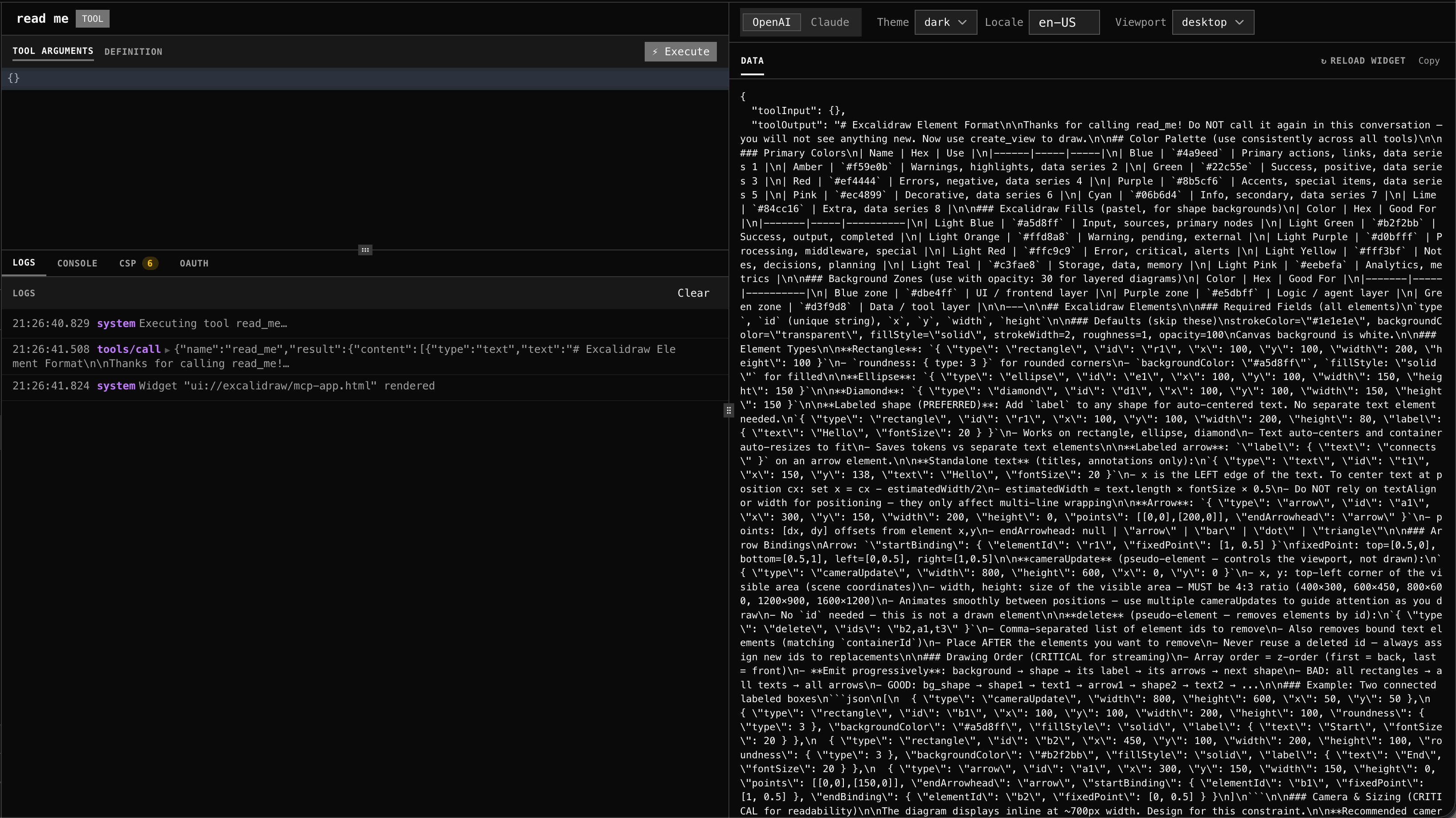
Interactive tool
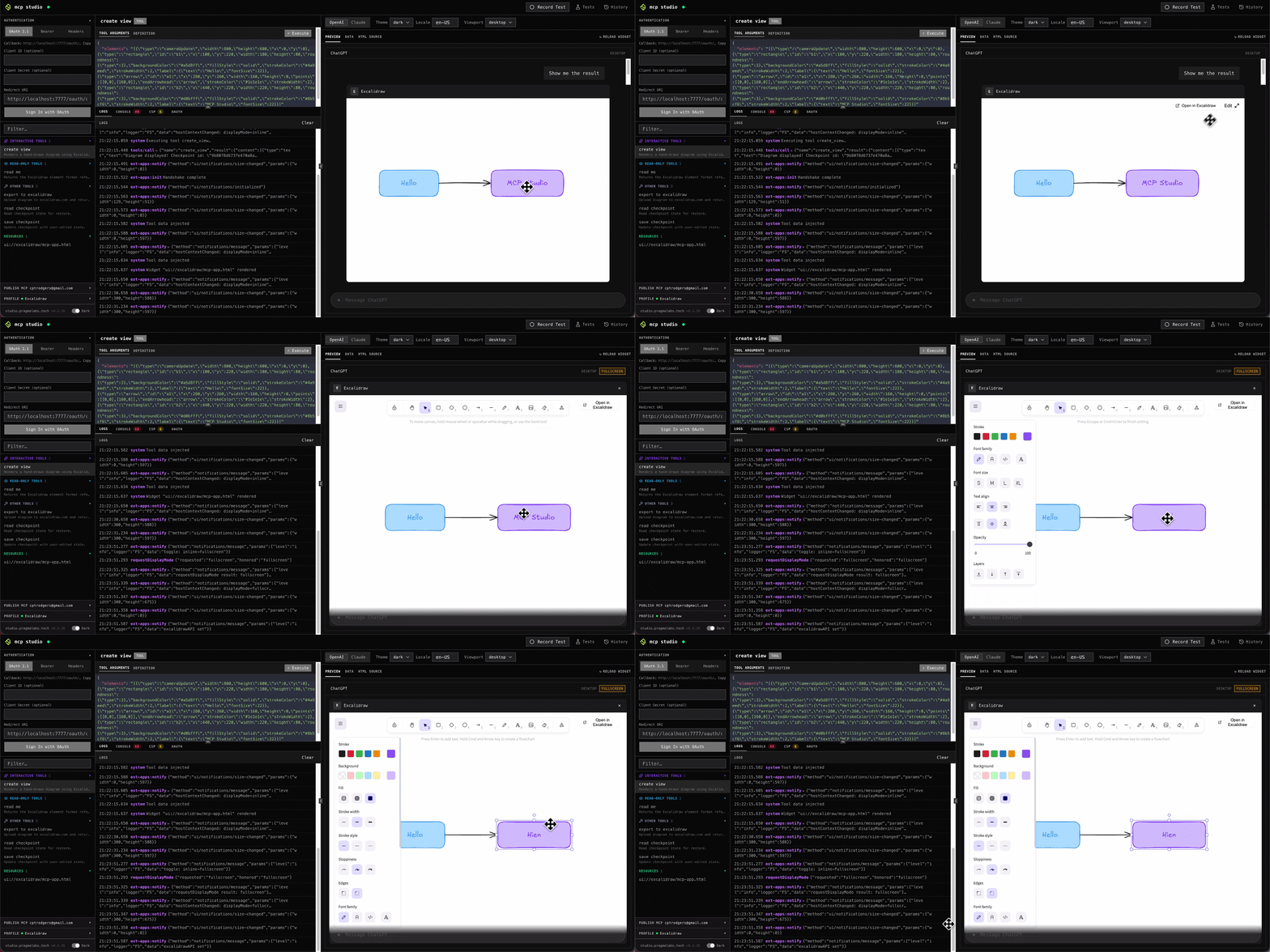
Other tools return a widget — a live UI rendered inside an iframe in the Widget Preview panel. You can click, type, drag, and interact with it exactly as an end user would. Any interactions can be recorded and turned into an automated test step.
Example — create_view (Excalidraw)
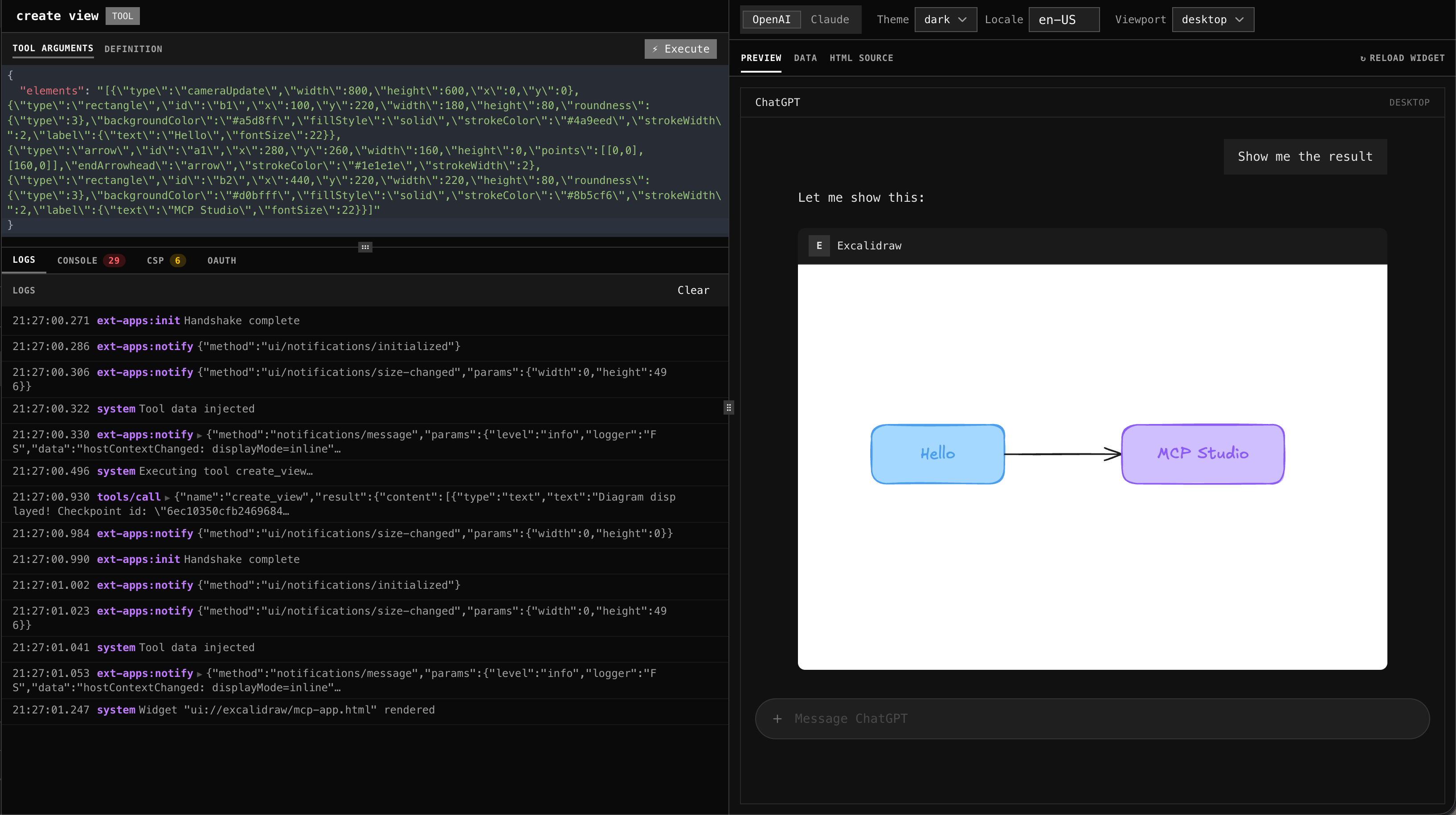
Pass an elements array and Excalidraw
renders a live, interactive diagram in the preview panel. The example below
draws two boxes connected by an arrow:
Hello → MCP Studio.
{
  "elements": "[
    { \"type\": \"cameraUpdate\", \"width\": 800, \"height\": 600, \"x\": 0, \"y\": 0 },
    { \"type\": \"rectangle\", \"id\": \"b1\", \"label\": { \"text\": \"Hello\" }, ... },
    { \"type\": \"arrow\",     \"id\": \"a1\", ... },
    { \"type\": \"rectangle\", \"id\": \"b2\", \"label\": { \"text\": \"MCP Studio\" }, ... }
  ]"
}
At a glance
Non-interactive
e.g. read_me
- Returns text, JSON, or markdown
- Preview panel shows data as read-only
- No clickable UI elements
Interactive
e.g. create_view
- Returns a widget (live iframe)
- Preview panel renders a full UI
- Clicks and inputs can be recorded as test steps