
[ Features ]
MCP Resources
MCP resources can return any content — text, JSON, or data. But because MCP Studio is built for MCP applications with UI, it gives first-class support to UI resources: resources that return an HTML widget. These render live in the Widget Preview panel and let you inject tool input and output to test how the UI behaves — without running a full tool call.
Resource types
Data resource
- Returns text, JSON, or markdown
- Shown as read-only content in the preview panel
- No injection or interaction
UI resource
- Returns an HTML widget
- Renders live and interactively in the preview panel
- Supports toolInput / toolOutput injection to test UI with real data
Test your Widget UI before adding it to a tool
UI resources are ideal for building and validating widget layout in isolation. Iterate on the HTML, use Reload widget to instantly refresh the preview with the latest layout, and only wire the widget up to a tool once the UI looks right.
How to read a resource
- 1
Pick a resource
Click any resource URI in the left sidebar under the active profile. The execution panel loads the Resource Request tab.
- 2
Execute
Click Execute. MCP Studio fetches the resource and renders the returned HTML in the Widget Preview panel. Use Reload widget at any time to refresh the preview with the latest layout without re-fetching from the server.
- 3
Inject test data (optional, widget resources only)
If the resource returns a widget, open the Test Data tab and inject
toolInputandtoolOutputto simulate how the UI renders with real data. Click Inject to apply.
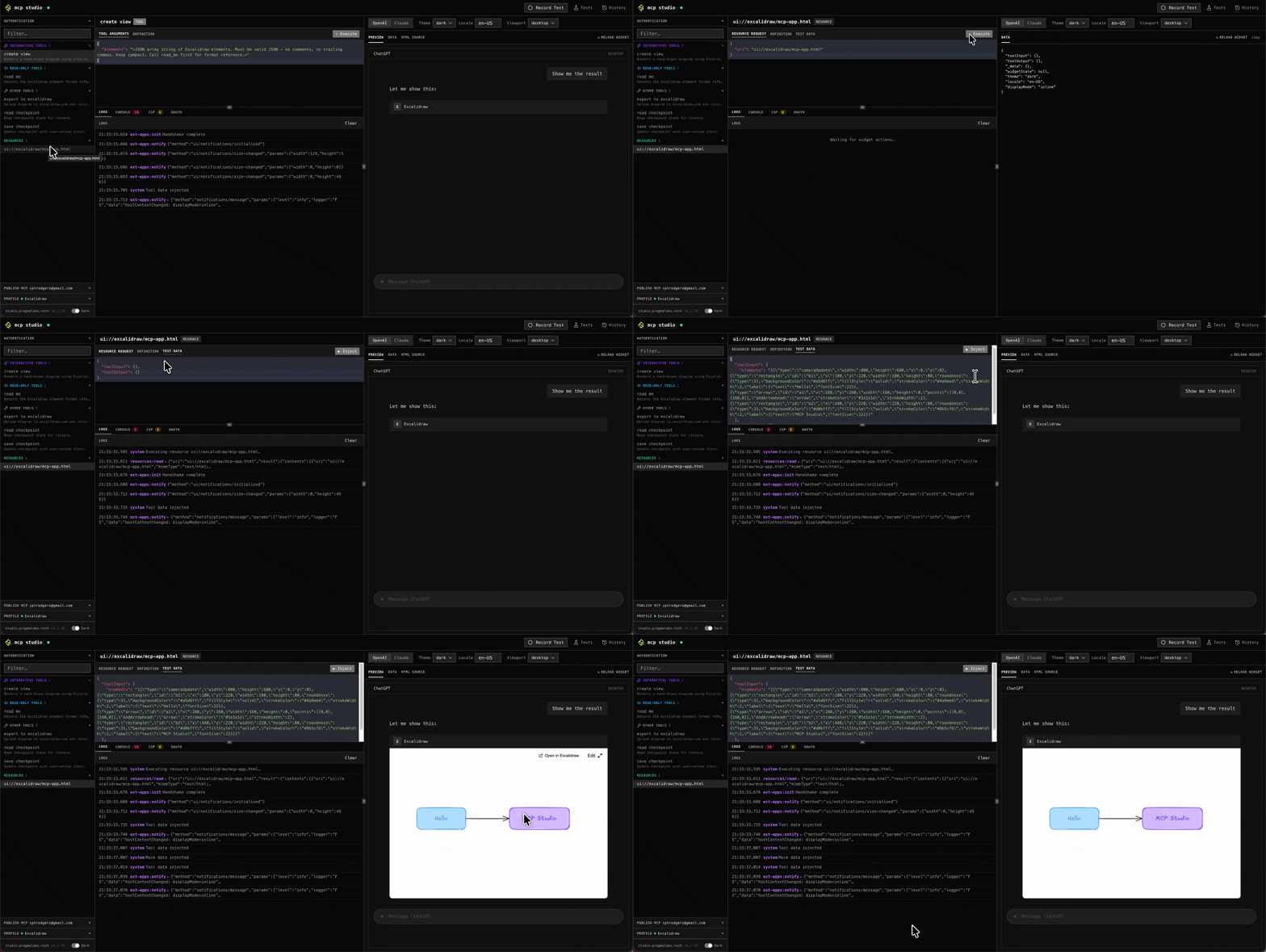
Injecting test data
Widget resources are HTML templates — they expect tool input and output to be passed in so they can render meaningful content. The Test Data tab lets you supply that data without wiring up a full tool call first.
{
  "toolInput": {
    "elements": "[
      { \"type\": \"cameraUpdate\", \"width\": 800, \"height\": 600 },
      { \"type\": \"rectangle\", \"id\": \"b1\", \"label\": { \"text\": \"Hello\" }, ... },
      { \"type\": \"arrow\",     \"id\": \"a1\", ... },
      { \"type\": \"rectangle\", \"id\": \"b2\", \"label\": { \"text\": \"MCP Studio\" }, ... }
    ]"
  },
  "toolOutput": {}
}
toolInput mirrors the arguments
you would pass to the corresponding tool. toolOutput holds any additional data the tool would have returned. Together they let
the widget render as if a real tool call had just completed.
Resources vs Tools
MCP Tools
- Execute server-side logic with arguments
- Return data or a rendered widget
- Recorded as test steps
MCP Resources
- Fetch content from the server (data or UI widget)
- UI resources render live and support toolInput / toolOutput injection
- Ideal for developing and validating widget layout before adding a tool