
[ Features ]
Connect an MCP App
A Profile stores an MCP server URL and its credentials. Every tool call, resource read, and test replay is routed through the active profile — switching profiles re-routes everything instantly without touching your tests.
What is a Profile
Name
A human-readable label shown in the sidebar and test run reports.
Server URL
The MCP endpoint to connect to, e.g. http://localhost:9000 or https://mcp.example.com/mcp.
MCP Studio ships with a default Excalidraw profile so you can explore the UI immediately. Replace it or add more profiles for your own servers.
Open the Profile Manager
Click the Profile section in the left sidebar to expand it, then click the profile name or the pencil icon. The Profiles dialog opens with the active profile already in edit mode.
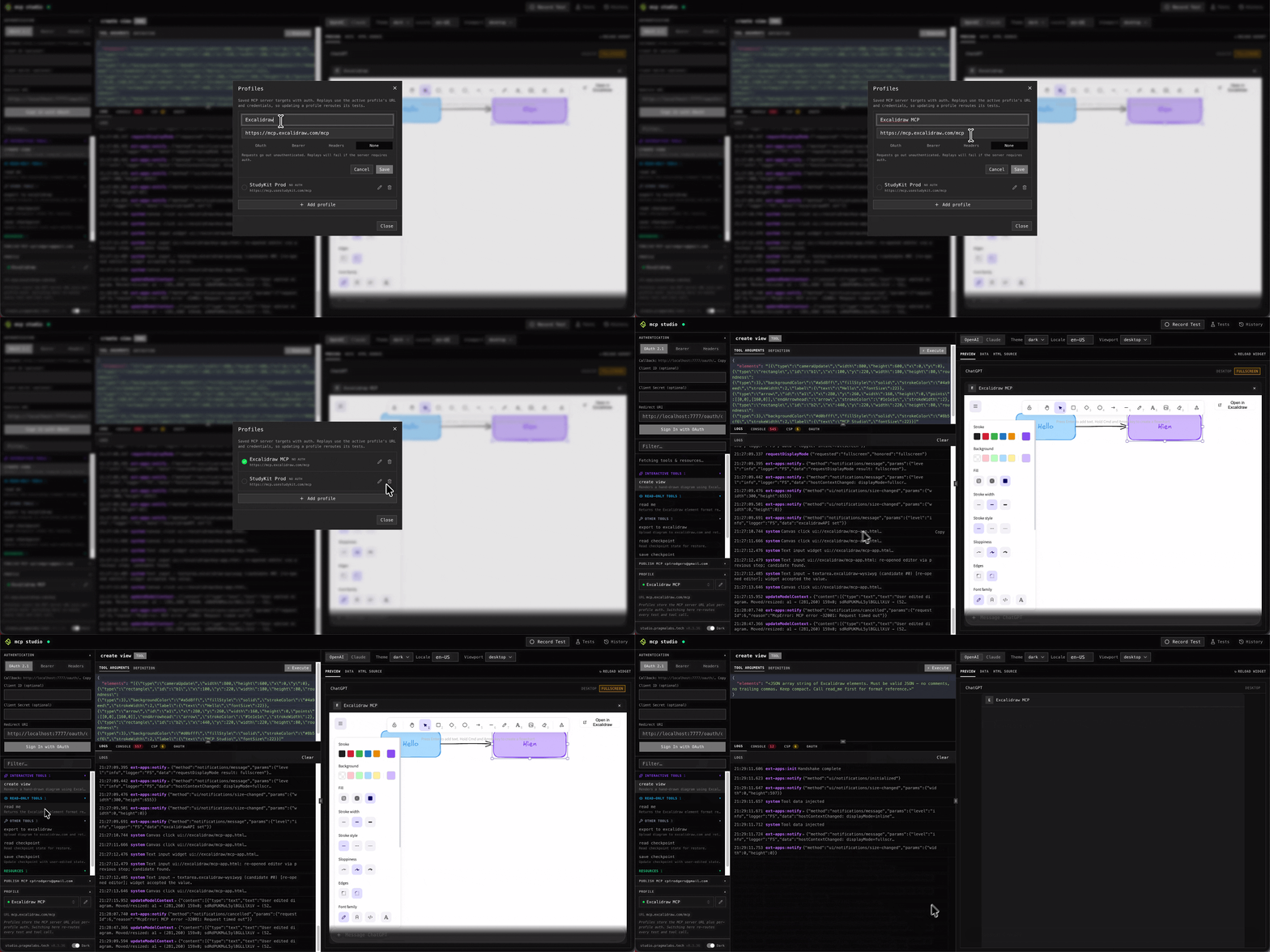
Create or Edit a Profile
- 1
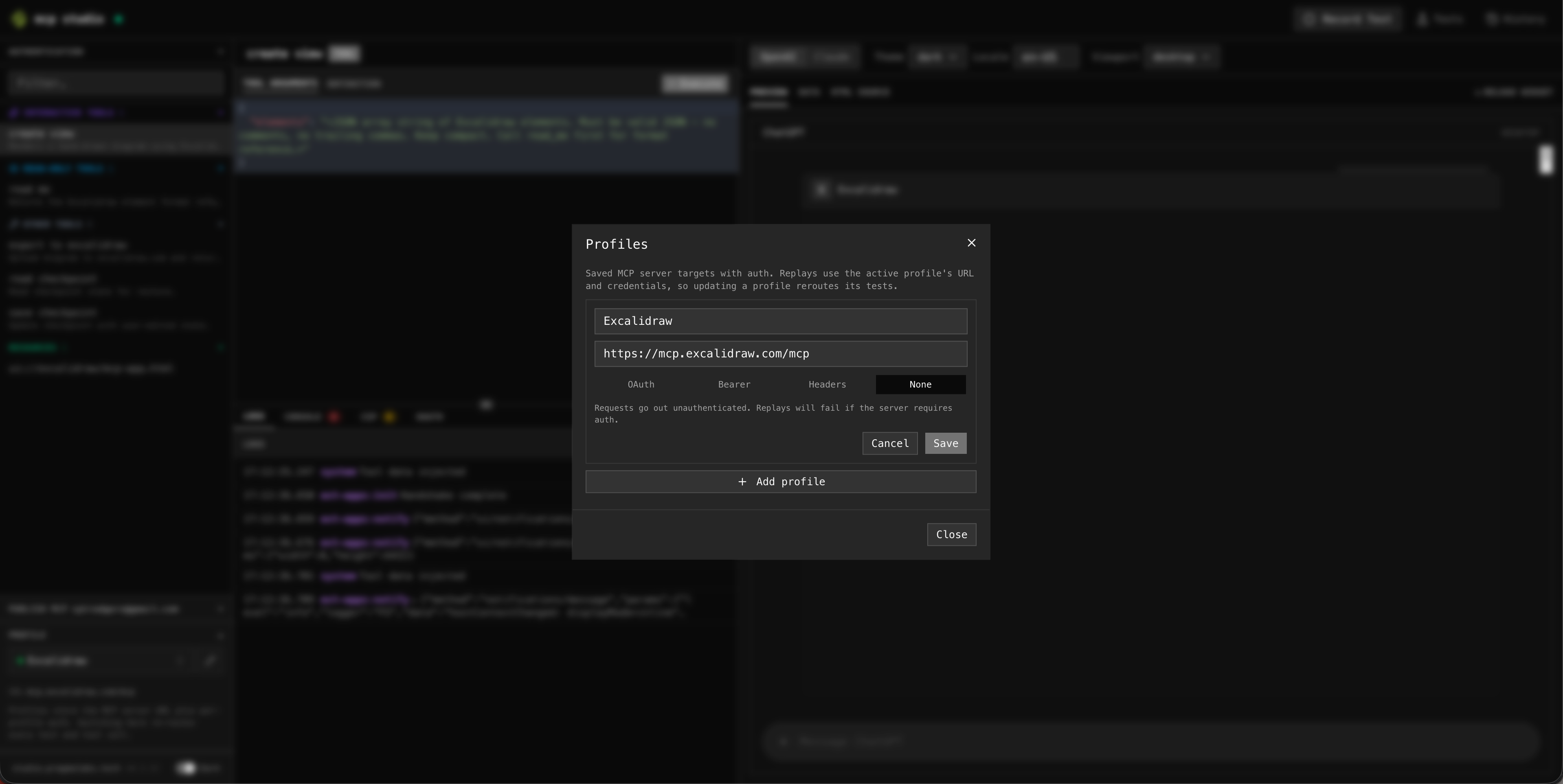
Enter a name
Give the profile a descriptive label — e.g.
Local devorStaging. - 2
Set the server URL
Paste the full URL to your MCP endpoint. Local servers and remote HTTPS endpoints are both supported.
exampleshttp://localhost:9000 http://localhost:9000/mcp https://mcp.example.com/mcp - 3
Save and activate
Click Save to persist the profile, then click the profile row to activate it. The green dot in the sidebar confirms the connection is live.
Switch Profiles
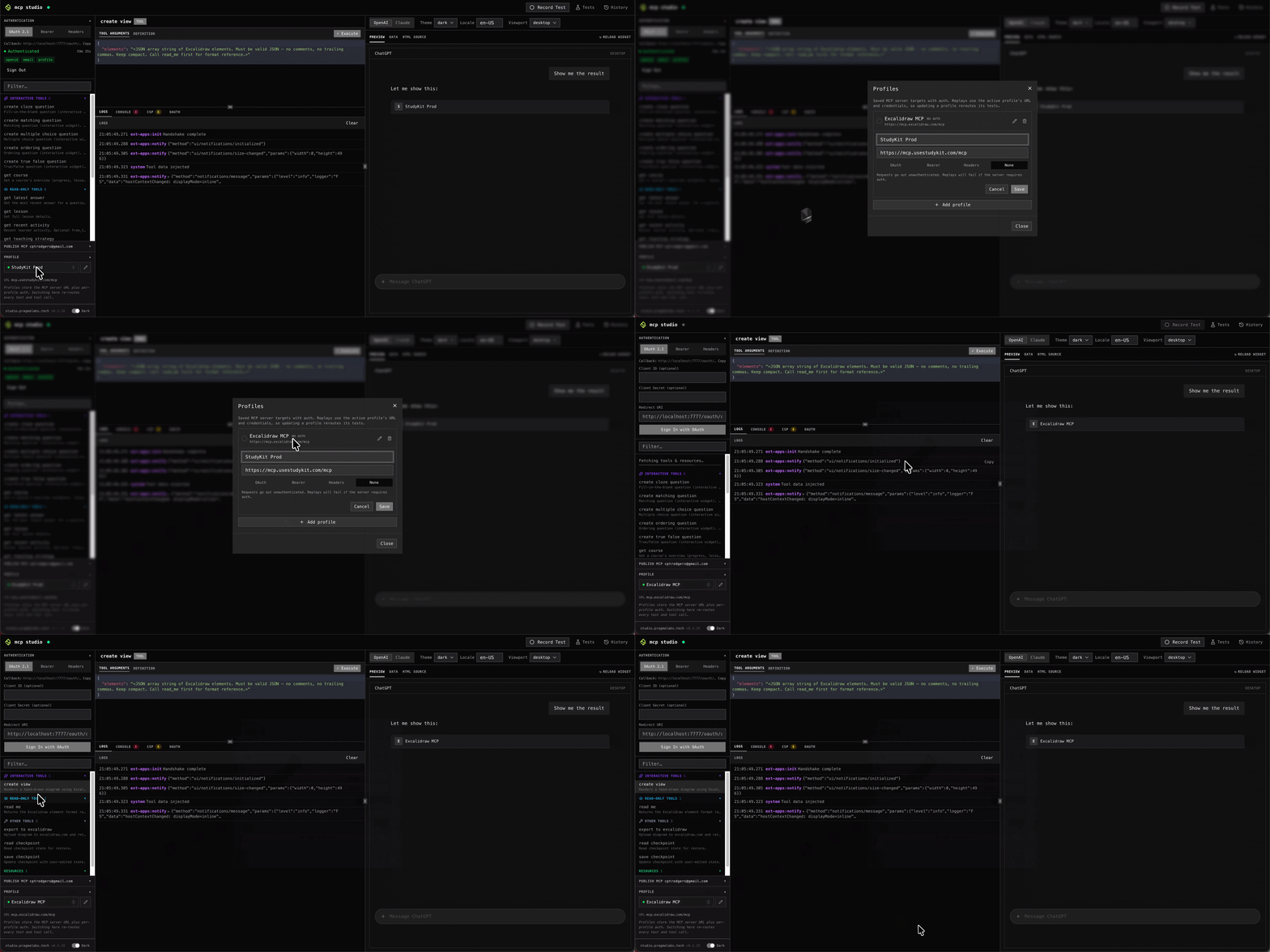
Open the Profiles dialog from the sidebar and click any profile row to activate it. The active profile shows a green check badge. All subsequent tool calls and test replays immediately use that profile's URL.
Tip — per-environment profiles
Keep separate profiles for Local dev, Staging, and Production. Switching profiles re-routes every test without any edits — useful
for a quick smoke-test after a deploy.
Profiles and Tests
Tests are not bound to a profile at record time — they replay against whichever profile is currently active. This means:
- Record once against your local dev server, then replay the same test on staging by switching profiles.
- Update a profile's URL and every test picks up the change automatically.
- You cannot delete the last profile — at least one must exist to keep tests runnable.