
[ Features ]
Interface
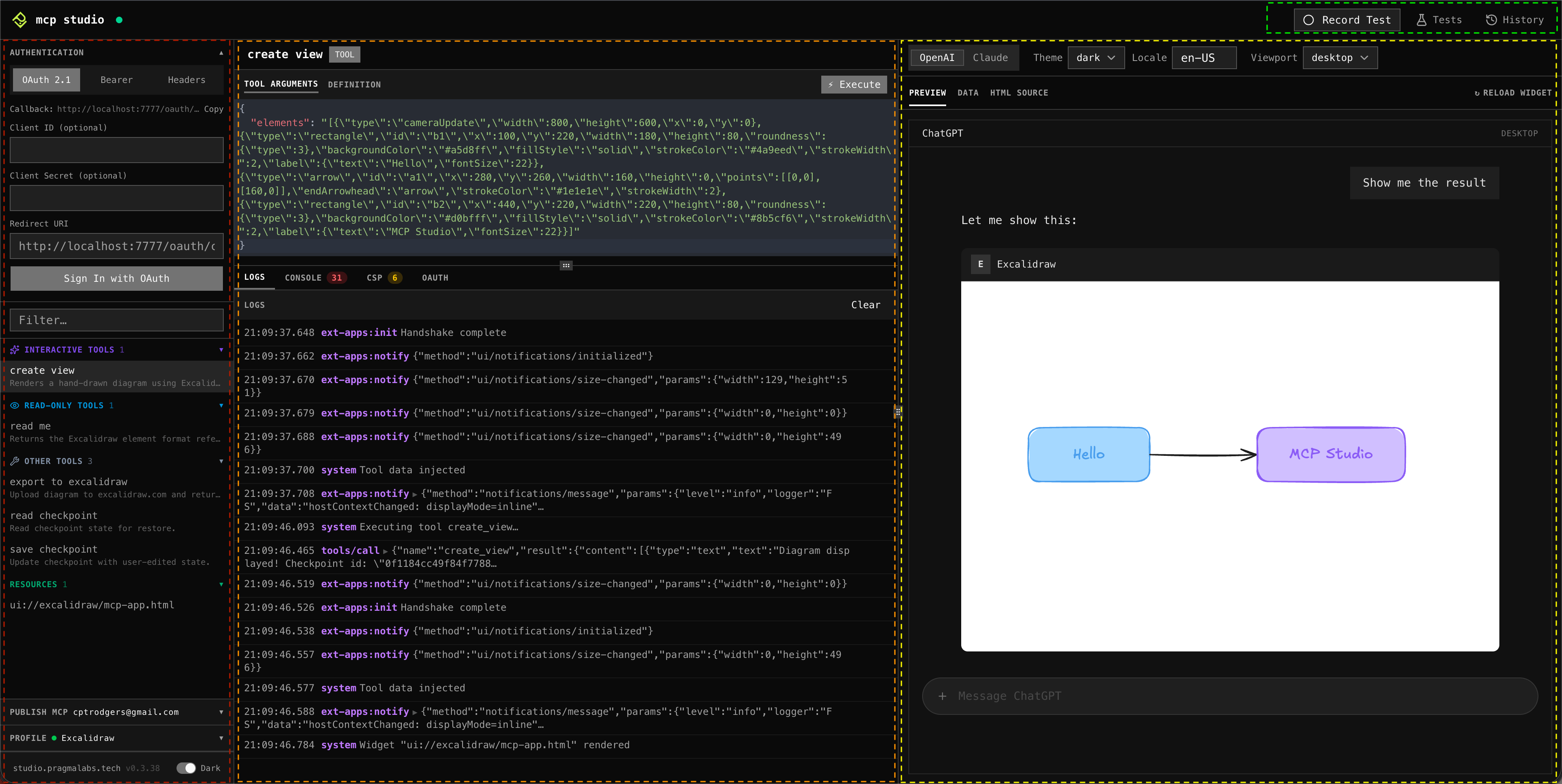
MCP Studio is divided into four areas. Each area has a dedicated role so you can configure, execute, preview, and test your MCP application without switching between separate tools.
Areas
Configuration sidebar
Manage your MCP connections and toolset. This is where you set the server URL, switch profiles, browse the list of available tools and resources, and configure app settings.
Execution panel
The main area for interacting with your MCP server. Execute tools, inspect arguments and responses, read logs, and check authentication status — everything that involves sending a request and seeing what comes back.
Widget preview
Renders the widget UI returned by a tool call. Interact with it just as an end user would — click elements, type into inputs, and switch between viewport presets (ChatGPT, Claude, desktop, mobile). Widget display settings live here too.
Tests panel
Record, manage, and run your end-to-end tests. List all saved tests, start and stop recording sessions, replay tests one step at a time or in full, and browse the history of past runs with their pass/fail results.